
|
||
|---|---|---|
How to request Remote Assistance
Recent versions of Microsoft Windows allow users to request remote assistance from other users or technical support personnel. 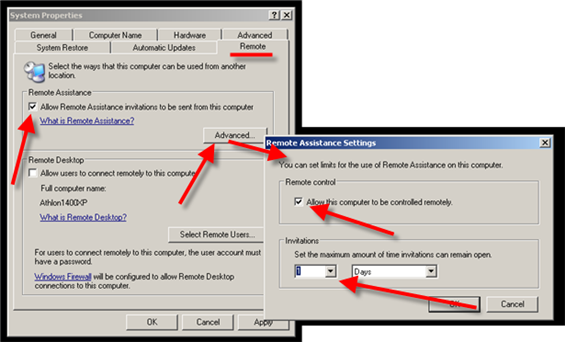
Enable Remote Assistance from the Control Panel "System" applet.
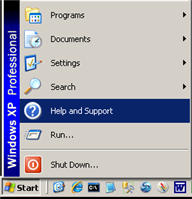
Step #1, Click on the Windows Start menu, and then click on "Help and Support". 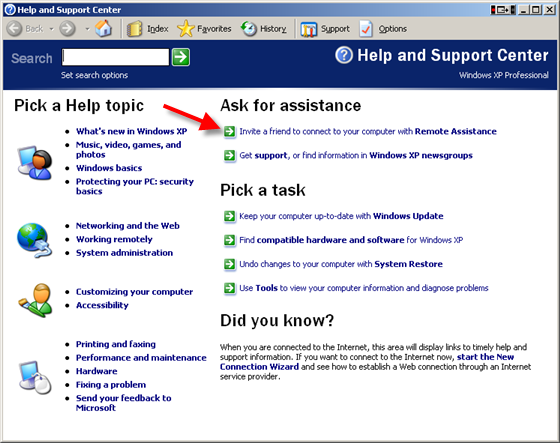
Click on the link "Invite a friend to connect to your computer with Remote Assistance." 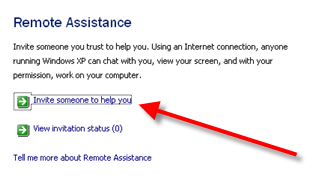
Click the "Invite someone to help you" link. 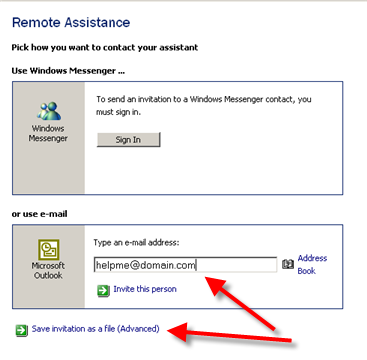
Type the email address of the recipient into the input box and click on the "Save invitation as file (Advanced)" link. 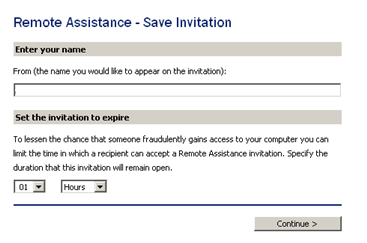
Enter your name into the "From" input box, set an expiration time, and press "Continue". 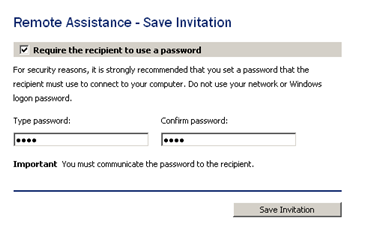
Enter a password, confirm it, and press the "Save Invitation" button. Some firewall settings may prevent Remote Assistance from working. |
Find out more about
Spectrum TimeClock.
TopicsGeneral InformationSpectrum Research, Inc.Export to Excel Accessing Your ClockSave a Website ShortcutSave a Smart Phone Shortcut Time Clock Punching Options Time Clock Punch Locations ConfigurationForgot Password FunctionHoliday Pay Setup Time Clock Rounding Running PayrollHow to Run PayrollRun a Payroll Batch View a Payroll Batch Run a Quick Payroll Report Exporting Time DataExport Time Data from SpectrumImport Time DataImport time data into PeachtreeImport time data into QuickBooks Employee ManagementDelete / Deactivate EmployeesAdd an Employee Reactivate Employees Punching IN / OUTEmployee Forgot Punch InEmployee Forgot Punch Out Additional ModulesBioNetick Module InstallationOther Support.Request Remote AssistanceTRACERT diagnostic DOL RegulationsHow to Calculate OvertimeOvertime Averaging Fixed Salary for Fluctuating Hours Weighted Average Regular Rate Employee Training Hours & Overtime All articles are | |
 Spectrum Research