
Biometric Time Clock Module Setup
The Spectrum TimeClock BioNetick™ Module is a biometric time clock interface program that interfaces the SecuGen® Hamster™ Plus fingerprint reader with our web based time clock application - Spectrum TimeClock. The Spectrum Research BioNetick module is a desktop program that runs on Microsoft Windows.
Read more about Spectrum TimeClock, web based time clock software.
Read more about the Spectrum TimeClock BioNetick (biometric networked time clock) module.
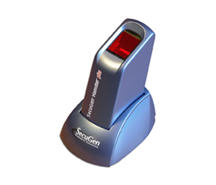
1.0: Install the SecuGen Hamster Plus Fingerprint Reader
Before you can use the SecuGen Hamster Plus and our BioNetick module, you must first install the Hamster Plus and its drivers to your computer. After that, you must install and configure our BioNetick module.The Hamster Plus fingerprint reader drivers are available for download on the internet via your web browser from SecuGen Downloads. Download the most recent 32 or 64 bit version of the "Device Driver". Do not download the "Windows Biometric Framework (WBF) drivers.
Once you downloaded the drivers and saved them to your hard disk, unzip the downloaded file to a temporary folder and run their setup program.
When prompted by the driver setup program, plug the USB cable of the Hamster Plus into an available USB port on your computer.
2.0: Install the BioNetick Module
Spectrum Research will send you your BioNetick Module as a .ZIP file attached to an email. Copy this file to a temporary folder and unzip its contents. Once unzipped, run the Setup.exe that was unzipped to install the module itself.
3.0: Configuring the BioNetick Module
The setup program will have created a BioNetick Module icon on your desktop. Double click on this icon to start the BioNetick module.
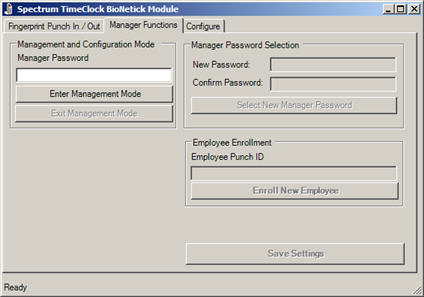 To configure the BioNetick Module, you must enter "management mode".
-
3.1: Entering Management Mode:
- Click on the "Manager Functions" tab.
- Enter the manager password that you were given in the "Manager Password" input box.
- Press the "Enter Management Mode" button.
3.2: Setting a New Management Password
To set a new management password, go to the "Manager Password Selection" part of the "Manager Functions" tab. Enter your new manager password in both the "New Password" and "Confirm Password" input boxes. Press "Select New Manager Password" when ready. Be sure to click the "Save Settings" button.
3.3: Internet Connection Configuration
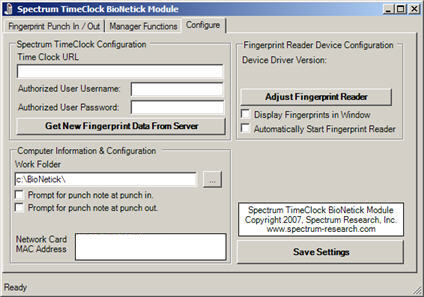
Spectrum Research will usually send you your BioNetick Module preconfigured with your time clock's web URL, so this step can usually be ignored.To configure the BioNetick module to be able to connect to your timeclock do the following:
- Click on the "Configure" tab.
- Enter the URL to your timeclock in the "Time Clock URL" input box.
- Enter a manager or administrator's password in the "Authorized User Username" and "Authorized User Password" input boxes.
3.4: Define the Workstation's Work Folder
Make sure that the workstation's work folder is set to the "c:\BioNetick" folder.
3.5: Other Options
You can enable or disable additional options by clicking on checkboxes on the "Configure" tab. Those are:- Display Fingerprints in Window
- Automatically Start Fingerprint Reader
- Prompt for punch note at punch in
- Prompt for punch note at punch out
If you enable the "Display Fingerprints in Window" option, employees will see their scanned fingerprint in the window on the "Fingerprint Punch In / Out" tab when the BioNetick module is scanning for fingerprints.
If you enable the "Automatically Start Fingerprint Reader" option, the fingerprint reader will start scanning for fingerprints as soon as it is started.
The options to prompt for a punch note at punch-in or punch-out allow employees to enter punch notes that administrators and managers can see from various Spectrum TimeClock screens.
3.6: Exiting Management Mode
To exit management mode, click on the "Manager Functions" tab, and then click on the "Exit Management Mode" button.
4.0: Downloading Existing Employee Fingerprint Templates
To freshen the encrypted fingerprint templates stored on the workstation, you must first enter management mode (see 3.1 above). Next, Click on the "Get New Fingerprint Data From Server" button to download existing encrypted employee fingerprint templates. Upon successful completion of this task, you will see a message box that says "Templates were successfully loaded."
5.0: Enrolling New Employees
Before employees can use the BioNetick module and the SecuGen fingerprint reader to punch in and out, you must add them to the time clock system and enroll them in the BioNetick module. Add the employee to Spectrum TimeClock using your normal procedures. To enroll the employee in the BioNetick Module, enter "management mode" as in 3.1 above.
From the "Manager Functions" tab, enter the employee's Punch-ID in the "Employee Punch ID" input box..
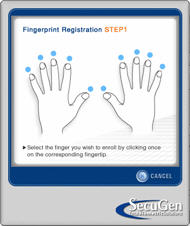
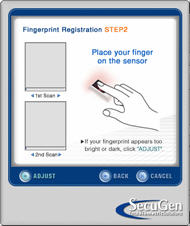
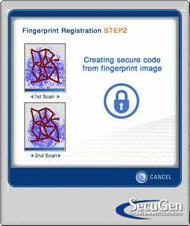
After that, click on "Enroll New Employee". You will see a new dialog box that prompts the employee to
through the fingerprint enrollment process.
 |
 |
 |
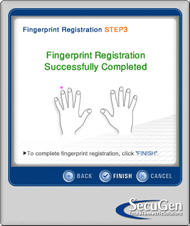 |
You will see a success message at the end of the process if the fingerprint was enrolled correctly.
6.0: Starting Fingerprint TimeClock Mode
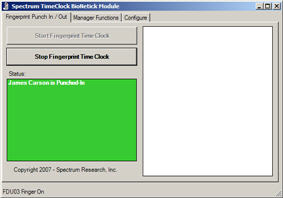
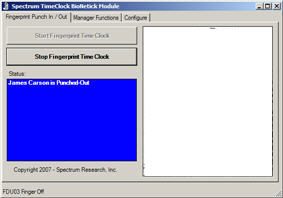
To place the BioNetick module in a mode where it will continuously capture fingerprints and punch employees in and out, go to the "Fingerprint Punch In / Out" tab, and click on the "Start Fingerprint Time Clock" button. Employees will then be able to punch in and out by placing their finger on the fingerprint reader's touch screen!Employees will see a green screen if they were able to punch in successfully. They see a blue screen if they have been punched out successfully. If their fingerprint is not found, nothing will happen except that they will see their fingerprint in the capture window if that option has been turned on.
 |
 |
7.0 Trademarks
Secugen and Hamster are trademarks of Secugen Inc.BioNetick is a trademark of Spectrum Research, Inc.