
How to Calculate a Time Card
If you have only just purchased and installed the software on your Windows 2000 (or better) computer, please refer to the software registration section below.
To learn more about the Spectrum Time Card Calculator, or to purchase to use on your own computer, click Time Card Calculator Software.
1.0: Setting DefaultsThe first time that you run the time card calculator, you will need to set the program defaults for your firm. These defaults will be saved and reloaded when you use the calculator the next time.
1.01: How to Set the Payroll Period
1.02: Set the First Day of the WorkweekIf you are using version 1.10 or newer of the Spectrum Time Card Calculator, then you will need to select your "First day of the workweek" from the dropdown.The first day of the workweek is typically Sunday for most firms, but it can be any day that you specify and stick to. Weekly and bi-weekly payroll periods will use a "Payroll Start" date that is the same day of the week as the first day of the workweek.
1.03: First Day of Week for Semi-Monthly PayrollFirms using semi-monthly payroll periods will often have a payroll period that falls in the middle of a workweek, on a day that is different from the "First Day of Workweek".To calculate payroll for semi-monthly payroll periods, you must enter time worked by an employee - for the whole workweek. For example, suppose that your "First Day of Workweek" is a Sunday, and you are figuring semi-monthly payroll for the period from Wednesday, 4/15/2009 to Thursday, 4/30/2009. You would need to enter all shifts starting on Sunday, 4/12/2009 through the end of the pay period. When calculating, the software will review the hours worked on Sunday, 4/12/2009, Monday and Tuesday and take those into consideration when determining if an employee goes into overtime on Wednesday, 4/15/2009 or later in the week. Those first three days three days would have been paid in the previous pay period, and will not be included in the totals. They will only be reviewed.
1.04: How to Round Time to Nearest 5,6 or 15 Minutes1.05: Configuring for California Overtime RegulationsCalifornia requires the payment of overtime and double time after certain work hours thresholds are met each day, each week, and after an employee works 7 days straight. To turn on these calculation formulas, check the "Use California Regulations" checkbox.
2.0: Adding Time CardsTo add time cards to be calculated, do the following.
3.0 Removing Incorrect Time Cards / Removing All Time Cards To remove incorrect time cards, simply select a single time card shift entry within the time card list control, and press the
"Remove Selected Shift" button.
To remove incorrect time cards, simply select a single time card shift entry within the time card list control, and press the
"Remove Selected Shift" button. To remove all time card shifts in order to advance to a new employee, simply click on the "Remove All Shifts" button.
4.0 Calculating PayrollTo perform all hours calculations, simply press the "Calculate Payroll" button.
After you do this, the time sheet list control at the top of the program will display each shift
along with its calculated values, as seen below.
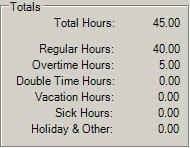
Additionally, the "Totals" section will hold summary calculations as see below.
5.0 Generating a Payroll ReportThe Spectrum Time Card Calculator can generate a HTML payroll report that displays the employee's name, hours totals, and gross pay. To run this report, you should do the following.
After you click on the "Generate Payroll Report" button, your current configured web browser should open with the payroll report automatically loaded. To register your software, do the following:
Additional Helpful InformationRound time to the nearest 5, 6 or 15 minutes |
Time Card Calculator Solutions 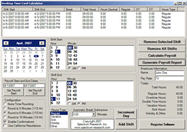 Learn more about our time card calculator software program.
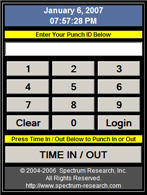 See our web based
Time Clock Software. |

 Within the "Hours Type" control, select one of Regular, Vacation, Sick, Holiday, or Other.
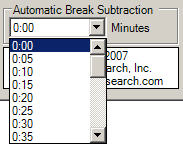 Within the "Automatic Break Subtraction" drop-down list box, select the amount of unpaid break time you want
automatically subtracted from each shift.
Within the "Automatic Break Subtraction" drop-down list box, select the amount of unpaid break time you want
automatically subtracted from each shift.
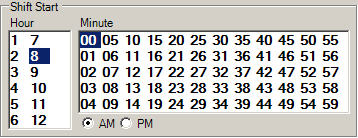
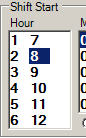 Within the "Shift Start" control, select the shift's starting hour. Eight O'Clock is used as an
example here. AM or PM will be selected lager.
Within the "Shift Start" control, select the shift's starting hour. Eight O'Clock is used as an
example here. AM or PM will be selected lager.
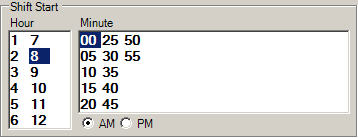
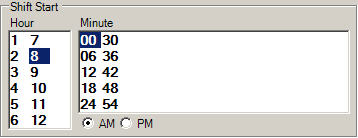
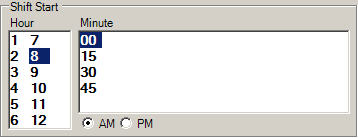
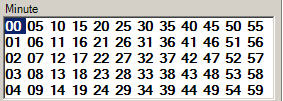 Within the "Shift Start" control, select the shift's starting minute.
 Within the "Shift Start" control, select whether the start time was AM or PM.
 Click on the "Add Shift" button to add the shift to the time sheet list control at the top of the program.
Calculations will be done later.
Click on the "Add Shift" button to add the shift to the time sheet list control at the top of the program.
Calculations will be done later. Repeat steps 4-8 until you have added all shifts. You can press the "Increment Day" button to quickly advance
the calendar to the next calendar day.
Repeat steps 4-8 until you have added all shifts. You can press the "Increment Day" button to quickly advance
the calendar to the next calendar day.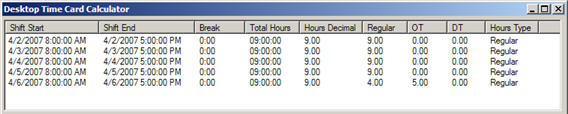
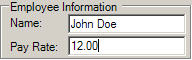 Enter the employee's name in the "Name" input box at the right of the application.
 Click on the "Generate Payroll Report" button.
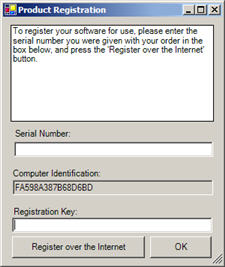 After you install the program on your workstation's hard disk, you must register it before you can use it.
Registration is performed online.
After you install the program on your workstation's hard disk, you must register it before you can use it.
Registration is performed online.