
Biometric Time Clock
|
Spectrum TimeClock works with the Microsoft® Fingerprint Reader and the APC BioPod Biometric Password Manager, creating a fantastic, inexpensive Biometric Time Clock! Using biometric identification further ensures the accuracy of employee time and attendance data.
Web Based Time Clock SoftwareFind out more about our web based time clock software that works with biometric devices.
Biometric Password ManagerThe Microsoft and APC Fingerprint Readers have built in biometric password managers that recognize the time clock "clock in" screen. The devices also support the time clock "Login" screen for biometric access control. After proper configuration, a finger print can be used to both punch in/out, and to login to the system.
Biometric One to One vs. One to Many FunctionalityThe default functionality of both the Microsoft Fingerprint Reader and the APC BioPod is 1 to 1, meaning that only the person currently logged into Microsoft Windows can punch in.Support is available for One to Many punching with the Microsoft Fingerprint Reader, where more than one person can punch into Spectrum TimeClock using that biometric device. The One to Many support is performed through the use of a 3rd party fingerprint reader software program that Spectrum Research offers. Click to read more about the use and installation of this 3rd party Fingerprint Time Clock software.
Configuring the Clock In/Out ScreenTo configure the Spectrum TimeClock Clock In/Out screen to work with the Microsoft Fingerprint Reader, you must first go to the time clock face screen. Then, place your finger on the Fingerprint Reader touch pad.At this point, you will see the Fingerprint Reader "Create Fingerprint Login" configuration screen, as seen below. Type your Punch-ID into the input box next to the time. Next, pull down the "Log on using" dropdown, and select "CLOCK IN / OUT". Finally, press OK. 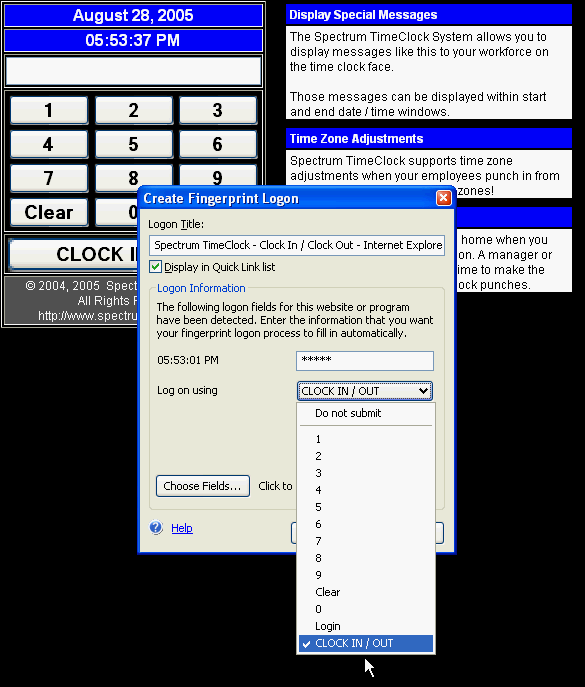
Biometric Time Clock - Clock In TestNow, while on the clock in/out screen, place your finger on the Fingerprint Reader touch pad. If your fingerprint is recognized, you will see fingerprint reader's success screen popup (as seen below), and you will be punched in or out of Spectrum TimeClock.
Configuring the Spectrum TimeClock Login Screen For Biometric LoginConfiguring the Spectrum TimeClock Login screen for use with the Microsoft Fingerprint Reader involves an additional step. Both the Punch-ID and Password input boxes must be enabled for use by the device. To do this, go to the Login screen and place your finger on the fingerprint reader touch pad. Next, click on the "Choose Fields" button as seen below.
From here, Check both the Punch-ID and Password checkboxes, followed by the "Done" button.  Finally, enter both your Punch-ID and Password in the Microsoft Fingerprint Reader configuration dialog. You should now be able to login with only a fingerprint.
Biometric Time And AttendanceUse both Spectrum TimeClock and the Microsoft Fingerprint Reader together to make a great biometric time and attendance system at a great savings. Each computer based time clock station can be fitted with a Microsoft Fingerprint reader for around $50 each. That cost may eventually go down as the cost of biometric technology goes down. |